
Process Lasso Hard Throttling: How to Limit CPU Usage of Specific Processes
Process Lasso Hard Throttling is a manual resource management feature designed for restricting CPU usage of selected processes to prevent resource-heavy applications from dominating system capacity and reducing responsiveness. By enforcing strict processing limits on individual programs via the background governor service (processgovernor.exe), operators gain direct control over how much processor time specific tasks receive without affecting the rest of the operating system. This technical guide covers hard throttling mechanics, rule configuration, process selection, practical use cases, and performance benefits across modern Windows NT environments. For additional Process Lasso resources, and download Process Lasso, visit the Process Lasso Download hub
What Is Process Lasso Hard Throttling?
Process Lasso Hard Throttling provides a direct mechanism for reducing excessive CPU consumption and maintaining system responsiveness when dealing with resource-heavy applications. Unlike dynamic limiters that react only when utilization spikes past defined thresholds, hard throttling applies persistent ceilings on selected processes to control resource competition.
This feature operates on individual processes instead of restricting the entire system, making it ideal for background synchronization tools, download managers, and unmanaged background utilities that consume processor cycles unnecessarily.
How Process Lasso Hard Throttling Works
The mechanism behind hard throttling relies on continuous oversight by the privileged background service executing under the SYSTEM account via the Windows Service Control Manager. The governor queries native Windows NT executive APIs to monitor target processes and apply restrictive scheduling constraints. These resource management mechanisms are part of the broader Process Lasso Algorithms system used for workload optimization.
These restrictions limit the amount of processor time allocated to configured executables, establishing a reliable direct CPU usage management method that prevents resource exhaustion.
Understanding CPU Throttling for Individual Processes
CPU throttling for individual processes involves placing explicit ceilings on resource consumption to prevent any single application from dominating available processing capacity. By reserving computing bandwidth for foreground tasks, hard throttling preserves overall system stability during heavy multitasking sessions. This targeted approach ensures that demanding background workloads complete their tasks gradually without starving interactive applications of necessary processing cycles.
How Process Lasso Restricts CPU Usage of Applications
Restricting application CPU usage begins with target process identification through the Process Lasso interface. Once an executable is selected and configured, the background governor applies continuous CPU restrictions directly to that specific binary. Because these restrictions apply exclusively to configured processes, normal system operations and unlisted applications continue running with unrestricted hardware access.
Hard Throttling vs Normal CPU Management
Normal Windows CPU scheduling allocates processor time dynamically based on standard thread priority classes, which can sometimes allow background tasks to consume excessive resources. Hard throttling introduces manual control, enabling administrators to override default scheduling behavior for problematic applications. This additional layer of control ensures predictable performance in environments where default operating system algorithms prove insufficient.
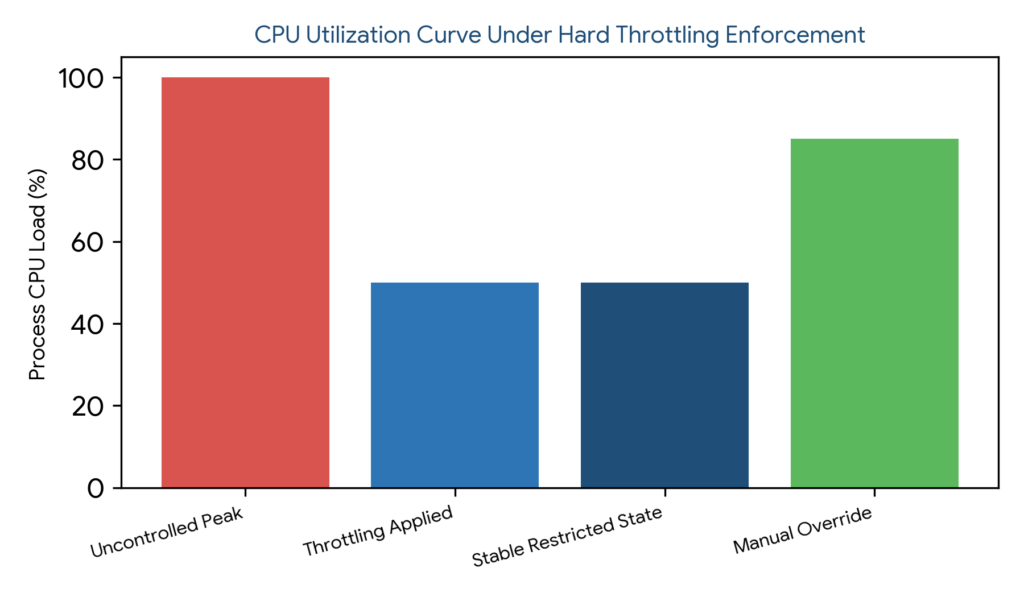
Figure 1: CPU utilization curve illustrating uncontrolled process peaks, hard throttling enforcement, stable restricted operation, and manual rule overrides
Process Lasso Hard Throttling Settings and Configuration
Configuring hard throttling involves creating rules, selecting target processes, and defining appropriate CPU limits through the desktop interface. Persistent configuration parameters are stored safely within C:\ProgramData\ProcessLasso\config\prolasso.ini to ensure rule retention across system reboots. For broader settings management, file locations, and advanced options, review the Process Lasso Configuration.
Managing saved settings properly allows administrators to maintain a clean, organized collection of optimization rules tailored to specific workstation or server requirements.
| Feature Name | Activation Trigger | Enforcement Persistence | Primary Operational Purpose |
|---|---|---|---|
| Hard Throttling | Manual user definition | Permanent until modified | Enforces static CPU usage ceilings on processes |
| Dynamic CPU Limiter | Automated usage threshold | Temporary and reactive | Throttles processes only during load spikes |
How to Limit CPU Usage of Specific Processes With Process Lasso
Limiting CPU usage of specific processes involves practical steps starting with identifying the resource-heavy application in the live telemetry view. Operators right-click the target process and select the appropriate restriction option to enforce hard throttling rules.
Monitoring subsequent CPU utilization curves verifies that the application adheres to the newly established processing ceiling, confirming successful optimization.
Selecting Applications for CPU Throttling
Choosing target applications for throttling typically focuses on background utilities, web browsers with heavy script execution, cloud sync tools, and unmanaged update clients that degrade foreground responsiveness.
Setting CPU Limits for CPU-Heavy Programs
Managing demanding software such as local rendering engines, file compression utilities, and media encoders often requires careful limit tuning to ensure tasks complete successfully without overheating host hardware.
Controlling Background Applications With Hard Throttling
Reducing resource consumption of non-critical background apps maintains foreground performance standards, ensuring that active user interactions remain fluid and uninterrupted.
Process Lasso Hard Throttling Rules Explained
Throttling rules operate on persistent configuration principles, automatically enforcing user-defined parameters whenever target executables launch. Understanding rule management empowers administrators to maintain precise control over background processes.
Creating Persistent CPU Throttling Rules
Saving rules permanently integrates them into the background service configuration, ensuring consistent enforcement across system reboots and simplifying management for repeated workloads.
Enabling and Disabling Hard Throttling Rules
Controlling active throttling rules allows operators to temporarily disable restrictions during maintenance windows and re-enable them when returning to standard multitasking environments.
Removing or Resetting Hard Throttling Settings
Removing restrictions involves deleting specific rules from the management interface or resetting configuration files to restore normal, unrestricted CPU behavior for previously throttled applications.
Process Lasso Hard Throttling vs Other CPU Management Features
Distinguishing hard throttling from related Process Lasso features prevents keyword overlap and ensures proper tool selection. Each feature targets distinct aspects of processor resource governance.
Understanding these functional differences allows operators to build effective, multi-layered optimization strategies tailored to specific system demands.
Hard Throttling vs CPU Limiter
Hard throttling enforces manual, user-defined process restrictions on a permanent basis, whereas the CPU Limiter provides automated, trigger-based CPU usage management that activates only during active load spikes.
To understand the differences between manual restrictions and automated controls, explore the Process Lasso CPU Limiter.
Hard Throttling vs CPU Affinity
Hard throttling controls the total amount of CPU processing time consumed by a process, whereas CPU Affinity controls which specific physical or logical processor cores an application is permitted to utilize.
Hard Throttling vs Process Priority Rules
Hard throttling limits available CPU resources directly, whereas Process Priority rules modify an application’s scheduling importance relative to other tasks within the Windows NT executive.
| Feature Name | Core Mechanism | Resource Control Type | Administrative Application |
|---|---|---|---|
| Hard Throttling | Manual resource ceiling | Direct CPU time limitation | Restraining persistent background hogs |
| CPU Affinity | Core mask assignment | Spatial core restriction | Binding applications to specific cores |
| Process Priority | Thread class adjustment | Scheduling importance | Elevating or lowering task priority |
Process Lasso Hard Throttling Use Cases
Practical deployment scenarios where hard throttling proves invaluable include reining in runaway background sync applications, managing resource-heavy software, controlling resource distribution on shared systems, and balancing multitasking workloads.
These use cases highlight how manual resource ceilings solve persistent performance bottlenecks in both desktop and server environments.
Limiting Background Applications CPU Usage
Restricting background synchronization tools, download managers, and software launchers keeps processor resources available for active foreground tasks and interactive applications.
Managing CPU-Heavy Software
Controlling resource consumption during intensive video rendering, code compilation, and data processing tasks prevents thermal throttling and maintains system stability during long-running operations.
Controlling Resource Usage on Shared Systems
Multi-user environments and shared workstations benefit from hard throttling by preventing single background applications from starving other user sessions or active programs of necessary CPU cycles.
Reducing CPU Consumption During Multitasking
Balancing multiple simultaneous workloads, such as running productivity suites alongside background media encoding, ensures smooth multitasking operation without interface sluggishness.
Benefits of Using Process Lasso Hard Throttling
The primary advantages of deploying Process Lasso Hard Throttling include preventing applications from consuming excessive processor cycles, significantly improving system responsiveness, and maintaining precise CPU resource control across diverse multitasking scenarios.
These benefits ensure smoother system operation, reduced thermal output, and enhanced stability when managing demanding software environments. For additional strategies focused on efficiency and workload balancing, explore Process Lasso Power Management.
Preventing Applications From Consuming Excessive CPU
Controlling problematic processes prevents total CPU resource exhaustion, ensuring that runaway background tasks cannot destabilize the host operating system or freeze active workloads.
Controlling problematic processes prevents total CPU resource exhaustion, ensuring that runaway background tasks cannot destabilize the host operating system or freeze active workloads. Performance monitoring and analysis tools can help evaluate CPU utilization patterns and understand how workloads impact processor resources. Intel Performance Monitoring and Analysis Tools
Improving System Responsiveness
Maintaining smoother system operation during heavy multitasking reduces noticeable UI slowdowns and application lag, delivering a highly responsive user experience.
Maintaining Better CPU Resource Control
Having customized control over application resource consumption empowers administrators to fine-tune system behavior precisely according to specific operational priorities.
Troubleshooting Process Lasso Hard Throttling Issues
Resolving configuration anomalies requires a methodical troubleshooting approach. Common problems such as rules not applying, processes maintaining high CPU usage, rules failing to save, or restrictions persisting can be resolved by verifying permissions and rule configurations. For more solutions related to settings failures, restrictions, and service behavior, consult the Process Lasso Troubleshooting.
Process Lasso Hard Throttling Not Applying
When throttling rules fail to engage, potential causes include incorrect process selection, unsaved rule configurations, permission restrictions, or conflicting background settings that override manual limits.
Process Still Using High CPU After Throttling
If a process continues exhibiting high CPU usage after applying restrictions, operators should confirm they targeted the correct executable binary, review active rules, and verify that the background governor service is operating normally.
Hard Throttling Rules Not Saving
Configuration issues or file permission restrictions in the system configuration directory can prevent rules from saving permanently. Verifying write permissions for prolasso.ini resolves persistence failures.
Removing Hard Throttling Restrictions
Clearing restrictions involves disabling or deleting specific rules within the management interface, resetting configurations, and returning the target application to default operating system scheduling.
