
Process Lasso Power Management: Automating Power Profiles for Better Performance
Process Lasso Power Management is an advanced system optimization utility designed to automate Windows power profiles dynamically based on real-time application behavior, active workloads, and system inactivity states. By bridging user-mode application triggers with the underlying Windows NT power subsystem, it seamlessly coordinates four core features: custom power profiles, IdleSaver, Load-Based Switching, and the Config Profile Switcher. This intelligent automation eliminates the friction of manual plan adjustments, helping modern Windows systems strike an optimal balance between maximum hardware performance, instantaneous responsiveness, and strict energy efficiency.
What Is Process Lasso Power Management?
Process Lasso Power Management serves as an intelligent governor over the native Windows power configuration architecture. While standard Windows power options require users to manually toggle between Balanced, High Performance, or Ultimate Performance plans via the Control Panel or Windows Settings, Process Lasso automates this entire lifecycle.
By monitoring thread creation, CPU core contention, and user input latency, the software adjusts active power schemes on the fly. For gaming personal computers, the utility automatically forces maximum performance power schemes when launching full-screen titles, preventing CPU frequency throttling and stuttering. On laptops and mobile workstations, it conserves battery life by scaling down core power states during low-intensity tasks and engaging aggressive idle reductions. Professional workstations benefit from sustained multi-threaded rendering performance without requiring manual intervention when switching between compilation tools and office applications, while everyday Windows systems enjoy dynamically tuned background responsiveness and power consumption.
How Process Lasso Power Management Works
The architecture underlying Process Lasso relies on a dual-tier model consisting of the user-mode graphical interface executable and the privileged background service executing under the SYSTEM account via the Windows Service Control Manager. The background governor queries NT executive APIs to monitor system-wide CPU utilization, thread queues, and user idle states. This design follows the same service-based structure explained in our Process Lasso Setup Guide, where the background governor manages system-level optimization tasks.
When specific trigger criteria are met, such as an application launch, a sustained spike in CPU load, or prolonged mouse and keyboard inactivity, the background service issues native Win32 power management commands to switch the active Windows power GUID.
Understanding Process Lasso Power Profiles and Power Settings
Windows power profiles govern critical hardware parameters, including
processor performance core parking, minimum and maximum processor
state percentages, PCI Express link state power management, and
graphics power throttling. Process Lasso does not replace these
underlying Windows power plans; instead, it indexes, manages, and
commands them.
Process Lasso does not replace these underlying Windows power plans; instead, it indexes, manages, and commands them. Windows power scheme documentation
Users can configure application-specific power rules by navigating to Options > Power > Active Power Profile within the desktop user interface. Persistent configuration parameters are stored safely in the designated system directory structure (C:\ProgramData\ProcessLasso\config\prolasso.ini), ensuring that custom mappings survive system reboots and service restarts.Automatic Power Profile Switching in Process Lasso
Automatic power profile switching removes the operational friction
of manually managing system power states. When an administrator or
power user designates a specific application, such as a 3D game,
a video editor, or a virtual machine, to require a specialized
performance profile, Process Lasso intercepts the process creation
event.
The background governor instantly applies the target power plan upon
application startup and automatically reverts the system to a
balanced or power-saving profile upon process termination. This
ensures that hardware resources are never wasted keeping processor
frequencies locked at peak levels during idle desktop periods.
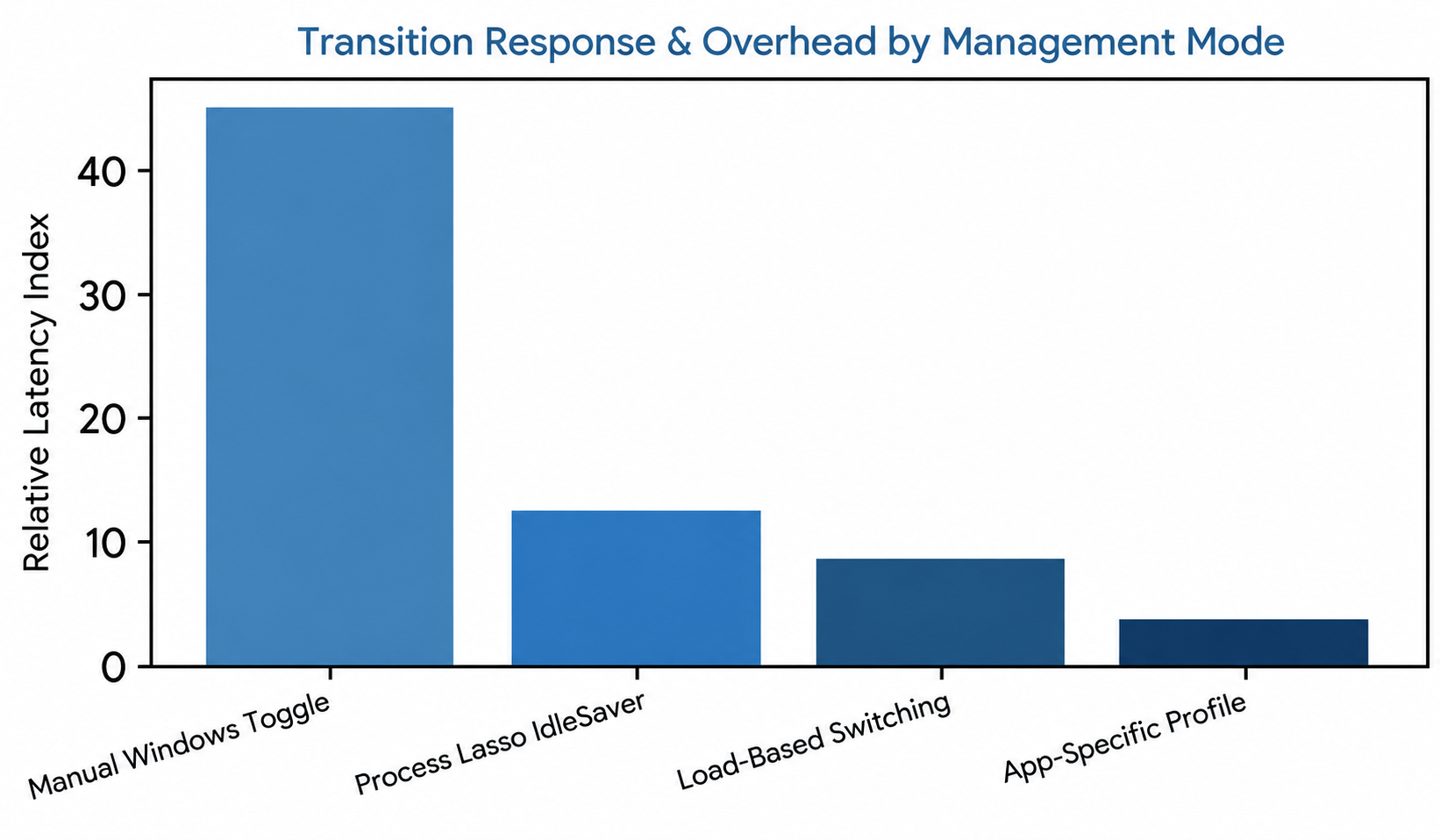
Process Lasso Power Profiles and Power Plan Switching
Effective power profile management requires striking a balance between raw computing throughput and thermal/energy efficiency. Process Lasso simplifies this trade-off by offering centralized orchestration of both default and custom Windows power schemes.
Managing Windows Power Profiles With Process Lasso
Through deep integration with Windows power management APIs, Process Lasso queries all available power schemes installed on the operating system. Users can select a default preferred power plan for general system operation while establishing secondary override plans for specialized applications. The software ensures that power state transitions execute smoothly without triggering audio pops, display flickering, or driver instability.
Switching Between Performance and Balanced Power Modes
Different computing tasks demand distinct hardware behaviors across distinct operational modes. Performance mode locks CPU frequency scaling to prevent latency spikes, disables aggressive core parking, and ensures immediate thread execution across logical processors, making it ideal for competitive gaming, audio mastering, and low-latency data processing. Balanced mode permits dynamic frequency scaling and core parking to minimize heat output and electrical draw during light productivity tasks, web browsing, and document editing.
For gaming and demanding workloads, these automated power transitions work alongside Process Lasso Performance Mode to maintain consistent system responsiveness.
Creating Custom Power Profiles in Process Lasso
Advanced operators frequently require custom power configurations tailored to specialized software pipelines. To create a custom profile, an operator opens the Process Lasso user interface and navigates to the configuration menu via Options > Power > Configure Power Profiles. From there, duplicating an existing baseline profile establishes a new custom GUID, allowing the modification of processor performance parameters such as minimum and maximum processor state percentages before assigning the profile to target applications via the Process Rules wizard.
| Operational Dimension | Native Windows Power Management | Process Lasso Automated Power Management |
|---|---|---|
| Switching Mechanism | Manual user toggling via Control Panel or Windows Settings | Automated real-time switching based on active process and CPU load |
| Granularity | Global system-wide plan (applies uniformly to all tasks) | Application-specific and workload-adaptive profiles (prolasso.ini) |
| Idle Adaptation | Basic display sleep and generic OS core parking | Advanced idle detection (IdleSaver) with custom energy profiles |
| Overhead | Minimal, but prone to user neglect and suboptimal core states | Highly optimized background governor service (processgovernor.exe) |
Process Lasso IdleSaver: Saving Power During Idle Periods
Unattended systems frequently sit at elevated power states while users step away, leading to unnecessary electrical consumption and elevated thermal output. Process Lasso addresses this inefficiency through IdleSaver, a specialized subsystem dedicated to idle energy management.
What Is Process Lasso IdleSaver?
IdleSaver is an automated utility that temporarily shifts the active Windows power plan to a designated energy-saving profile whenever the system detects user inactivity. Unlike standard Windows sleep or hibernation settings that shut down display output or suspend the machine entirely, IdleSaver maintains active background processes, downloads, and network connections while reining in processor power consumption.
How Process Lasso IdleSaver Works
The IdleSaver engine hooks into standard Windows input monitoring APIs to track keyboard and mouse inactivity. When the specified inactivity threshold is breached, the background governor commands an immediate shift to an energy-saving power profile. The moment the user moves the mouse or strikes a key, IdleSaver instantly restores the system’s original active power profile, guaranteeing zero perceptible input lag upon return.
Configuring IdleSaver Settings for Power Saving
To configure IdleSaver for optimal efficiency, administrators navigate to Options > Power > IdleSaver Configuration. Key configuration parameters include defining the inactivity timeout duration, selecting the target power plan to deploy during idle windows, and configuring exclusion filters to prevent IdleSaver from engaging when specific background applications such as media servers or overnight renders are actively running.
Using IdleSaver to Reduce Power Consumption
Deploying IdleSaver yields tangible benefits, particularly on portable systems and enterprise desktop fleets. By curbing unnecessary high-performance mode locking during coffee breaks or meetings, IdleSaver lowers overall electricity overhead, reduces cooling fan noise, and extends laptop battery longevity.
Process Lasso Load-Based Switching
While application-specific rules govern software launch events, Load-Based Switching evaluates real-time system workload intensity to govern power profile selection dynamically.
Process Lasso Config Profile Switcher
For advanced administrators and power users managing multi-role systems, the Config Profile Switcher offers comprehensive control over overarching application configurations.
What Is Config Profile Switcher in Process Lasso?
The Config Profile Switcher allows operators to package distinct sets of Process Lasso rules, CPU affinities, priority classes, and power management settings into discrete configuration profiles. Users can switch between these configuration profiles manually or automate their activation based on time of day, active network connection, or logged-in user account.
These saved behaviors rely on Process Lasso rules to apply persistent settings automatically across different workloads.
How Config Profile Switcher Works
Configuration profiles are stored as independent parameter sets within the application directory structure. When a profile switch is triggered, the background service unloads active rules and applies the new configuration parameters without requiring an application restart or system reboot.
Creating Automatic Profile Switching Configurations
To establish automated profile switching, administrators navigate to Options > Configuration Profiles > Manage Profiles. From this interface, distinct profiles can be created for different operating environments such as gaming setups, office productivity, and nighttime rendering. Defining trigger conditions based on active processes or time windows ensures seamless operational transitions.
Advanced Process Lasso Power Management Settings
Fine-tuning Process Lasso’s advanced power settings enables power users to tailor system behavior to extreme performance and efficiency requirements. Additional customization options are covered in our Process Lasso configuration, including advanced settings and application behavior controls.
Adaptive Power Management for Different Workloads
Adaptive management leverages hysteresis timers to prevent rapid, jittery power plan switching when CPU utilization hovers near threshold boundaries. By requiring sustained load conditions over a configured interval before changing power states, Process Lasso ensures smooth, stable hardware operation.
Balancing Performance and Energy Efficiency
Achieving peak efficiency requires balancing aggressive core scaling with latency minimization. Operators can adjust responsiveness weights within the advanced settings menu to favor absolute throughput over battery conservation, or vice versa, depending on the host hardware’s thermal design power.
Optimizing Power Profiles for Different Usage Scenarios
Different use cases require specific optimization parameters to maximize hardware longevity and responsiveness across diverse computing environments.
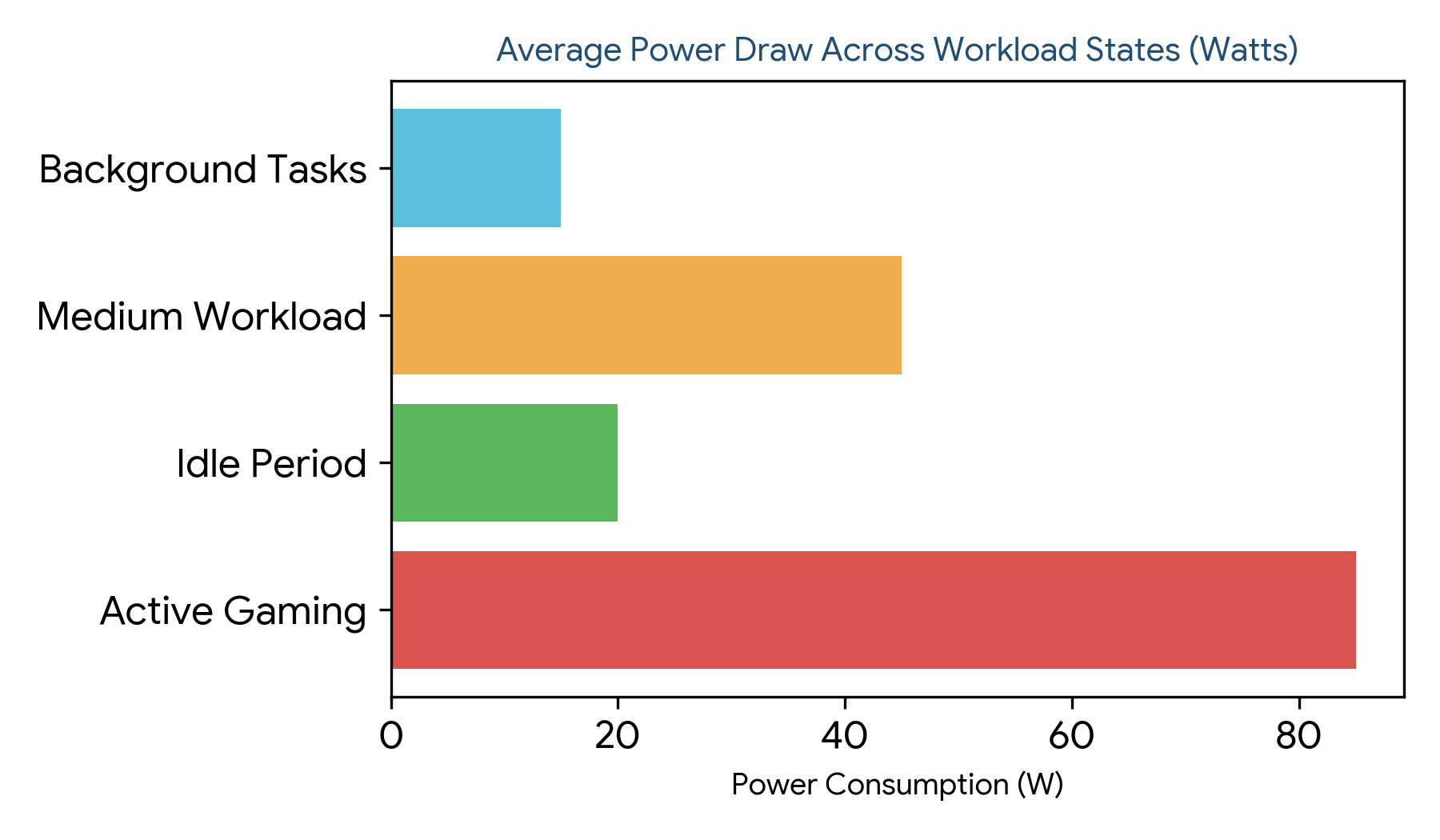
Figure 2: Average power draw distribution across active gaming, idle periods, medium workloads, and background tasks.
| Usage Scenario | Recommended Primary Feature | Target Power Scheme | Core Optimization Strategy |
|---|---|---|---|
| Competitive Gaming | Application-Specific Profiles | Bitsum Maximum Performance | Disable core parking, lock minimum processor state at 100% |
| Laptop Mobile Office | IdleSaver & Balanced Mode | Windows Balanced / Power Saver | Aggressive idle timeout (3 mins), dynamic frequency scaling enabled |
| Multi-Threaded Rendering | Load-Based Switching | High Performance | Sustained high load triggers max power state without throttling |
| Everyday Web Browsing | Adaptive Power Control | Balanced / Custom Efficiency | Dynamic workload switching to minimize heat and fan noise |
Process Lasso Power Management for Different Use Cases
Practical implementation of power management rules yields distinct operational benefits across various computing platforms.
Process Lasso Power Settings for Gaming
Gaming workloads demand absolute frame-time consistency and zero stutter caused by CPU core parking or sudden frequency drops. By associating gaming executables with high-performance power profiles, Process Lasso ensures that hardware maintains peak electrical supply and maximum thread scheduling priority throughout gameplay sessions.
Process Lasso Power Management for Laptops
Laptop operators face constant trade-offs between battery endurance and burst performance. Process Lasso’s combination of IdleSaver and automated balanced switching ensures that mobile systems consume minimal power during idle and low-load tasks while instantly delivering full processing capabilities the moment demanding applications launch.
Process Lasso Energy Saving Settings for Everyday Use
For office environments, media servers, and family desktops, energy saving settings reduce long-term electrical overhead. By automatically scaling down processor states during web browsing, document creation, and idle periods, Process Lasso minimizes thermal wear and acoustic output without sacrificing user responsiveness.
