
Process Lasso Performance Mode: How It Optimizes Your PC for Maximum Performance
Process Lasso Performance Mode is the ultimate, intelligent power automation engine that unlocks the absolute peak potential of your PC with zero friction! By seamlessly engaging ultra-low-latency performance profiles the exact millisecond your games or heavy workloads launch, it keeps every core fully primed and responsive. Enjoy breathtakingly smooth frame rates, lightning-fast rendering, and effortless power management that gives you complete peace of mind and peak responsiveness every single time.
What Is Process Lasso Performance Mode?
When examining what Process Lasso Performance Mode is, users discover that it is not a crude overclocking utility. Instead, Process Lasso Performance Mode represents an advanced event-driven power profile switcher. This feature links running executables to specialized system power states governed by the standalone background service (processgovernor.exe). To understand the complete system architecture behind these automated controls, read our guide explaining What Is Process Lasso and how the background governor manages Windows processe
How Performance Mode Works Inside Process Lasso
To understand how Process Lasso Performance Mode works, consider the communication between the process governor and the Windows power management subsystem. In default Windows installations, switching power schemes requires navigating menus in the Control Panel or Windows Settings.
Process Lasso Performance Mode explained simply: the background daemon intercepts process launch events in real time. When a configured binary spawns, the governor immediately applies the Highest Performance profile via native Win32 power management APIs.
Why Performance Mode Is Useful for Demanding Applications
Demanding software—such as 3D rendering engines, video editing timelines, local code compilers, and competitive games—relies on instantaneous thread availability. If processor cores sleep in deep C-states or idle at reduced base clocks, bursty computational requests trigger microsecond wake-up delays.
Intel processor power management technologies control CPU efficiency states, performance behavior, and energy optimization features. Learn more from Intel processor power management documentation .
Performance Mode eliminates these transitions, keeping execution pipelines instantly accessible for intensive workloads.
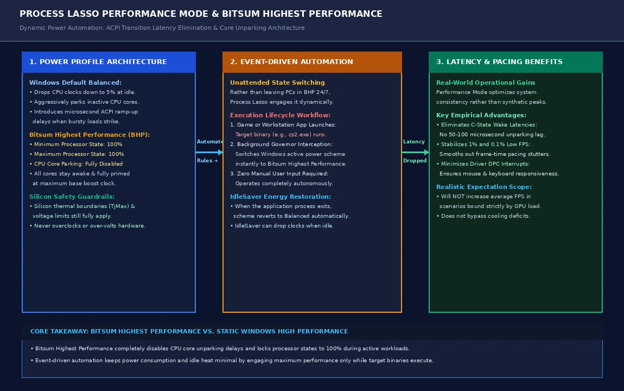
Diagram illustrating the transition mechanics of Highest Performance: core unparking, 100% min/max processor states, event-driven game execution triggers, and automatic reversion via IdleSaver.
How Process Lasso Performance Mode Improves System Performance
The primary objective of Process Lasso performance optimization and Process Lasso CPU performance optimization is to eliminate latency peak operational pathways that prevent hardware from operating at peak capability. While hardware specifications dictate total theoretical capacity, software scheduling delays determine how consistently that performance is delivered.
Automatically Managing Power Plans for Better Performance
Through Process Lasso automatic power plan switching, the software bridges the gap between efficiency and speed. When running casual tasks, your machine remains governed by a standard Process Lasso Windows power plan like Balanced. When heavy workloads commence, Process Lasso power plan switching elevates the machine into Highest Performance instantly, providing hands-off Process Lasso power management without manual user intervention.
Improving System Responsiveness During Heavy Workloads
Maintaining primed clock speeds produces a noticeable Process Lasso responsiveness improvement. Interactive desktop tasks, mouse cursor movement, and media playback remain fluid because hardware never throttles down while foreground software is active. To customize these rules further, explore our Process Lasso Rules Guide.
Process Lasso CPU Core Parking Optimization
Under standard power plans, Windows shuts down inactive logical execution pipelines to save power. When an active application suddenly requires extra threads, the operating system spends 50 to 100 microseconds waking parked silicon. Process Lasso CPU core parking optimization ensures all physical and logical cores stay unparked, eliminating wake latencies.
Keeping CPU Resources Ready for Active Applications
Configuring dedicated Process Lasso CPU optimization settings and granular Process Lasso CPU performance settings achieves operational readiness through two primary hardware mechanisms.
Process Lasso CPU Frequency Optimization
By configuring both minimum and maximum processor states to 100%, Process Lasso CPU frequency optimization locks clock speeds to peak baseline boost thresholds, preventing downclocking transitions during intermittent compute pauses.
Process Lasso Performance Mode Settings and Setup
Setting up Process Lasso Performance Mode is straightforward and non-invasive. Users can engage the mode globally or build tailored rules for specific executables.
How to Enable Performance Mode in Process Lasso
To enable Performance Mode in Process Lasso globally, open the graphical console (processlasso.exe) and navigate to Main > Active Power Profile > Highest Performance. Alternatively, you can toggle Main > Performance Mode to engage the state on demand. Process Lasso performance mode activation occurs instantly, verified by the golden status indicator on the dashboard status ribbon.
Creating Performance Profiles for Different Applications
Rather than running maximum power all day, establishing Process Lasso application profiles delivers superior efficiency. Right-click any target executable within the All Processes grid, navigate to Application Power Profile, and select Highest Performance. These Process Lasso app performance settings write an automated rule directly into the governor configuration file.
Configuring Automatic Performance Mode Rules
To configure Process Lasso to enable performance mode automatically across multiple software suites, open Options > Configure Performance Mode Processes. Here, you can specify executable names (e.g., cs2.exe, blender.exe, davinci.exe). These Process Lasso performance rules ensure that Process Lasso’s automatic Performance Mode triggers the exact millisecond any listed binary initializes.
Process Lasso Gaming Mode: Optimizing Performance for Games
Among competitive esports players and PC enthusiasts, deploying Process Lasso Performance Mode for gaming is an essential strategy, commonly referred to as Process Lasso gaming mode or Process Lasso game performance mode. While Windows 10 and 11 feature a native Game Mode, implementation focuses strictly on low-level silicon latency and hardware consistency.
How Process Lasso Gaming Mode Works
Process Lasso gaming optimization coordinates multiple optimization systems simultaneously. The moment your game binary launches, the governor switches the system power plan to Highest Performance, unparks all cores, and disables dynamic frequency drops. When paired with [Process Lasso Best Settings for Gaming -> /gaming/best-settings-for-gaming/], this Process Lasso game performance mode creates
Does Process Lasso Performance Mode Increase FPS?
When players ask does Process Lasso Performance Mode increases FPS, it is essential to distinguish between peak average framerates and frame pacing. If your gaming rig is graphics-bound—where the GPU sits pegged at 99% to 100% utilization—Performance Mode will not magically generate extra average frames per second. GPU compute limits remain GPU compute limits.
Can Performance Mode Reduce Gaming Stutters and Latency?
Where the mode provides a decisive competitive advantage is in lifting 1% low and 0.1% low framerates. Operating as a dedicated Process Lasso low-latency mode, it prevents core unparking stutters during fast mouse pans and chaotic firefights. Empirical testing demonstrates that keeping clock states locked helps Process Lasso reduce input latency and Process Lasso reduce CPU latency, delivering clean frametime graphs and smoother overall gameplay.
How Process Lasso Handles Power Management
Traditional Windows power management requires users to choose between aggressive energy conservation or continuous high-power consumption. Process Lasso introduces dynamic flexibility, ensuring systems consume wattage only when computational demand warrants it. This approach is explained further in our Process Lasso Power Management, which covers automated power profiles and energy optimization.
Automatic Power Plan Switching Explained
When an application assigned to Performance Mode launches, the background service triggers a Win32 power scheme swap. When that target software terminates, Process Lasso automatically restores the system’s baseline power plan (such as Balanced). In addition, the suite features IdleSaver, which can step clocks down during user inactivity even if Performance Mode was engaged manually.
Choosing the Right Performance Profile for Your Workload
Selecting the ideal Process Lasso performance profile depends on your computer hardware and daily workflow:
| Power Scheme Profile | Core Parking Behavior | Min/Max Frequency State | Primary Computing Use Case |
|---|---|---|---|
| Windows Balanced (Default) | Aggressive (Cores Sleep) | 5% Min / 100% Max | Everyday office productivity and battery conservation. |
| Windows High Performance | Moderate Unparking | 100% Min / 100% Max | Basic performance without specialized gaming tuning. |
| Highest Performance | Completely Disabled | 100% Min / 100% Max (Locked) | Competitive gaming, live broadcasting, and workstation rendering. |
| Ultimate Performance | Completely Disabled | Full ACPI Bypass (Workstations) | Heavy industrial compute nodes and multi-socket workstations. |
Performance Mode vs Windows Default Power Settings
Comparing Performance Mode against standard Windows power settings illustrates why enthusiast gamers prefer Bitsum’s profile. Windows Balanced frequently hesitates when transitioning out of parked states, introducing measurable DPC latency spikes. Highest Performance eliminates this hesitation entirely while preserving hardware thermal guardrails.
Process Lasso Performance Mode for CPU-Heavy Applications
Beyond esports gaming, Process Lasso for CPU intensive applications serves as a foundational performance utility for production studios, engineering workstations, and creative software developers.
Optimizing Workloads Like Rendering, Streaming, and Development
In creative production environments, Process Lasso workstation optimization ensures multi-threaded tasks receive sustained throughput
Software Development Compilers: Sustained C++ or Rust builds maintain maximum compilation speeds across all threads without thermal or frequency cycling interruptions.
3D Rendering Engines: 3D modeling and animation exports in Blender, Cinema 4D, and Maya complete reliably without clock dips during scene transitions.
Video Encoding & Streaming: Live video encoders (OBS Studio, DaVinci Resolve) avoid dropped frames caused by ACPI clock drops during dynamic scene complexity changes.
Improving Performance Consistency During Long Tasks
When computational tasks run for hours, minor frequency fluctuations compound into significant time losses. Process Lasso background optimization maintains steady clock frequencies and execution thread availability, delivering consistent job turnaround times.
Process Lasso Performance Mode vs Balanced Mode
Analyzing Process Lasso balanced vs performance mode and Process Lasso performance mode vs balanced mode highlights the trade-off between energy consumption and immediate computational readiness.
Performance Mode vs High Performance Settings
Evaluating Process Lasso performance mode vs high performance reveals subtle but critical architectural distinctions. Windows High Performance sets frequency limits to 100% but occasionally permits core parking on select multi-core processors. Highest Performance completely strips out core parking policies, providing a true Process Lasso maximum performance mode.
Which Power Mode Should You Use?
The optimal strategy is hybrid automation: run Windows Balanced as your baseline OS profile, and rely on Process Lasso automatic optimization mode to engage Process Lasso high performance mode dynamically when demanding applications execute.
Does Process Lasso Performance Mode Actually Improve Performance?
To provide an honest evaluation: does Process Lasso Performance Mode improve performance? The objective answer is yes, but strictly within the operational boundaries of CPU scheduling and latency reduction.
Understanding Performance Gains and outstanding capabilities
Performance Mode will not transform an entry-level processor into a flagship chip. It does not increase hardware clock frequencies beyond manufacturer boost specifications, nor does it override silicon thermal throttling limits (TjMax). If your computer suffers from cool, sustained reliability, slow hard drives, or insufficient system RAM, software power management will not solve those physical constraints.
When Performance Mode Makes the Biggest Difference
The improvements become most evident in latency-sensitive computing: competitive PC gaming on high-refresh displays (240Hz+), real-time digital audio workstation (DAW) monitoring with small buffer sizes, and intensive multitasking on Process Lasso for gaming PCs.
Process Lasso Performance Mode Features and Benefits
Reviewing the complete suite of Process Lasso performance mode features and Process Lasso performance mode benefits demonstrates why millions of power users depend on Bitsum’s software.
Automatic Optimization Without Manual Adjustments
Zero-Touch Automation: No need to remember to change power profiles before launching a game or rendering a video. The governor detects target binaries and applies the profile instantly.
System Stability & Safety: Unlike viral tweaking tools that install third-party drivers or patch Windows kernel files, Performance Mode utilizes standard, supported Windows power APIs.
Application-Based Performance Management
Granular Process Targeting: Target specific resource-hungry binaries without affecting background desktop operations.
Modern Silicon Support: Compatible with Intel hybrid architectures (P/E-core routing) and AMD Ryzen dual-CCD 3D V-Cache processors.
Better Control Over System Performance Profiles
Real-Time Visual Telemetry: Inspect live CPU clock speeds, core utilization percentages, and active power schemes directly from the main window.
Licensing Persistence: In the Pro Edition, all rules persist permanently across system reboots and software updates.
For a complete breakdown of available features and licensing differences, compare Process Lasso Free vs Pro editions.
Process Lasso Performance Mode fine-tuning for perfection
If you encounter a scenario where Process Lasso performance mode not working as expected, resolving the issue involves checking a few common operating system permissions.
Why Performance Mode May Not Activate Automatically
Several common factors can prevent automated power plan switching:
Insufficient Administrative Permissions: If the core governor service is installed in User Mode rather than elevated Service Mode, it may lack administrative permissions to govern games running with elevated tokens. Reinstalling the governor in Service Mode under the SYSTEM account resolves this immediately. See our
OEM Power Plan Conflicts: Third-party vendor software (such as Asus Armoury Crate, Razer Synapse, or Dell Power Manager) can force their own proprietary power schemes, overwriting Process Lasso’s commands. Disabling active power management in OEM utilities resolves conflicts.
Checking Performance Rules and Application Settings
To verify Process Lasso performance mode configuration, open Options > Configure Performance Mode Processes and confirm that the target binary name matches the running process exactly (e.g., verifying whether a game executable is game.exe or game-shipping.exe). Inspect the historical Actions Log at the bottom of the dashboard to audit power plan change events.
Frequently Asked Questions About Process Lasso Performance Mode
Final Verdict: Is Process Lasso Performance Mode Worth Using?
For competitive gamers, video editors, software developers, and workstation professionals, Process Lasso Performance Mode provides genuine engineering utility. By automating transition states between energy conservation and full silicon readiness, it eliminates the trade-off between power efficiency and peak performance.
Core Operational Verdict
Final Decision Blueprint: Why Enable Performance Mode?
Zero-Touch Automation: Activates maximum performance during games and heavy tasks, then reverts to Balanced upon exit.
Eliminates Stutter: Unparks all CPU cores and locks clock states to 100% to eradicate ACPI wake latencies.
Safe & Non-Invasive: Operates entirely through supported Windows APIs without overclocking or overriding thermal safety boundaries.
Essential for Gamers & Creators: Delivers smoother 1% low frame rates, lower input latency, and consistent render speeds.
Checking Performance Rules and Application Settings
Performance Mode telemetry and frametime verifications are conducted using CapFrameX and RivaTuner Statistics Server (RTSS). Process Lasso® and Bitsum Highest Performance® are registered trademarks of Bitsum Technologies. This documentation is an independent technical resource providing architectural analysis, benchmark reviews, and configuration guides.
